Set up with AI drafts a complete starting setup for your market from a short description of your business, or from your website. Nothing is saved until you review the draft and press Apply selected.
It uses Claude with your own Anthropic API key, the same key as the AI website assistant. A draft usually costs a few cents.
Before you start
Add your Anthropic API key under Settings → AI assistant. The website assistant doesn't need to be switched on for Set up with AI to work.
Draft your setup
- Open Chauffeur Plugin → Setup and click Set up with AI.
- Describe your business in a few sentences: your services, vehicles, the area you cover, the airports and events you serve, and your usual prices if you know them.
- Optionally add your website (the AI reads the page for your services and fleet) and your main city or area.
- Click Draft my setup. It takes about a minute.
What the draft contains
| Part | What you get |
|---|---|
| Currency, units and countries | Currency, miles or kilometres, time zone, 12 or 24-hour clock, the countries you serve |
| Company details | Only what your description or website actually says |
| Vehicle classes and rates | 2 to 5 classes with passengers and bags, a base fare, a price per mile or km, a minimum fare and an hourly rate |
| Popular locations | Up to 12 airports, cruise terminals, stations and hotels, with full addresses |
| Zones | Circles around each airport and your main districts |
| Fixed routes | Prices per vehicle between those zones, in both directions |
| Pricing rules | Surcharges for local events, holidays and late nights |
| Booking rules | Minimum notice, free waiting at airports and free cancellation |
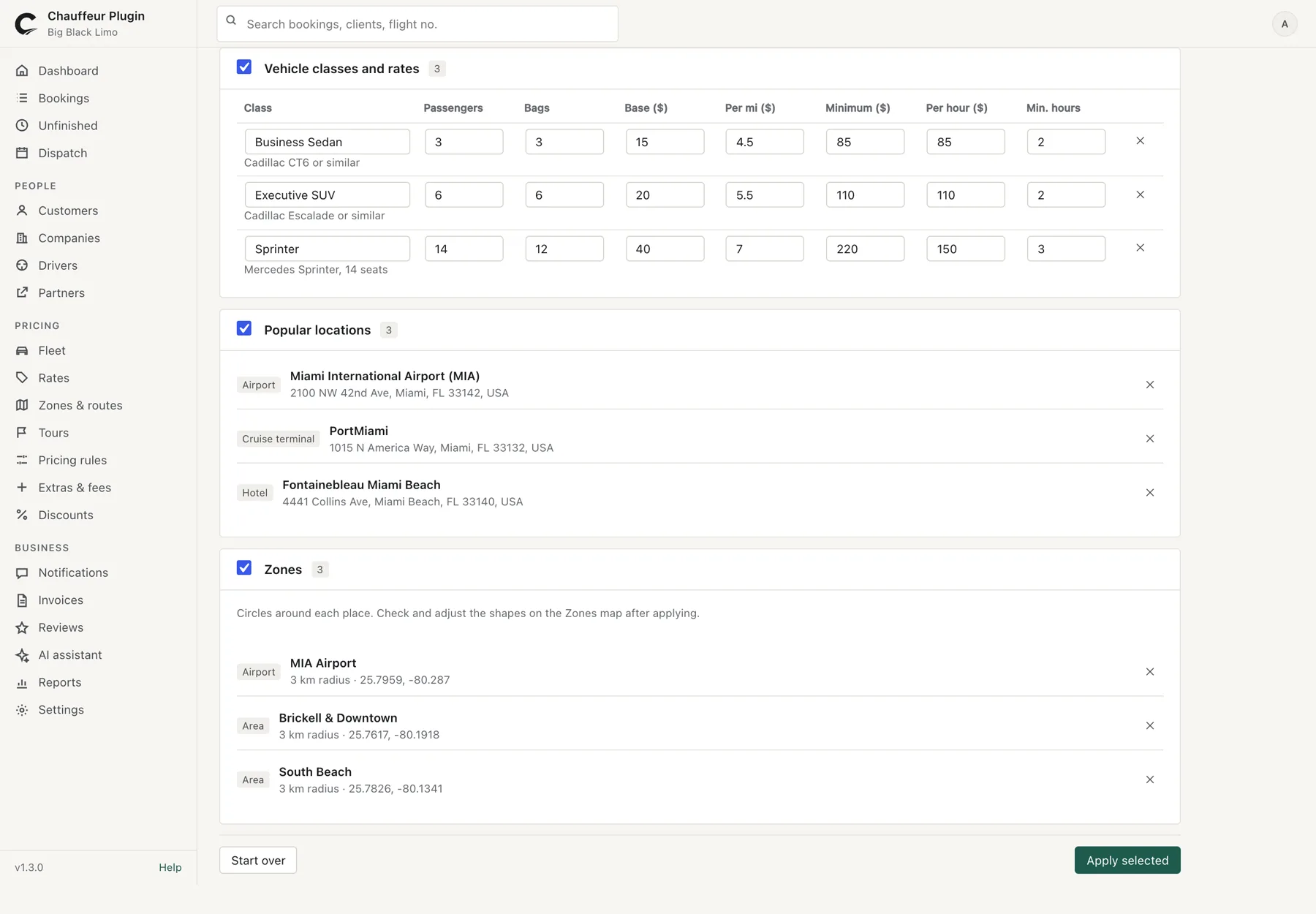
Review and apply
- Read the assumptions at the top: what the AI guessed and you should check.
- Edit vehicle names, passengers, bags and every price. Remove locations, zones, routes or rules with ✕.
- Untick any section to leave it out.
- Click Apply selected. A summary shows what was added, with links to Rates, the Zones map and Pricing rules.
What happens to your existing settings
- Company details are only filled in where they are empty.
- Vehicle classes with the same name keep their photos and settings and get the new rates; other classes are added.
- Popular locations are added to your list, without duplicates.
- Zones and pricing rules with the same name are reused, so running it twice doesn't create copies.
After applying
- Check each zone on the Zones map and adjust its size or shape.
- Check the prices under Rates against what you charge today.
- Add your Google Maps keys and payments in the setup guide.
- Make a test booking.
Frequently asked questions
Does Set up with AI change my existing settings?
Only what you apply, and it keeps what you have: company fields are filled in only when empty, existing vehicle classes keep their settings and get the new rates, and zones and rules with the same name are reused.
Are the AI prices right for my market?
They are a realistic starting point based on your description and typical local rates. Edit them in the review, or later under Rates, before you take bookings.
How much does it cost?
It uses your own Anthropic API key. A draft usually costs a few cents.
Can I run it again?
Yes. Each draft is reviewed before anything is saved, and items that already exist are reused instead of duplicated.