The driver app is a page on your website that chauffeurs open on their phone. There's nothing to download from an app store, and they can add it to the home screen like any app.

Signing in
Send the invite from Drivers. The chauffeur taps the link in the email and stays signed in on that phone. Sign-in links work once, for 20 minutes; they can ask for a new one any time.
A trip, step by step
- Accept the new job.
- On my way: the client gets a tracking link.
- Arrived: the client is told the car is waiting.
- On board: location sharing stops for the client.
- Complete: enter waiting time, parking, tolls and cash collected.
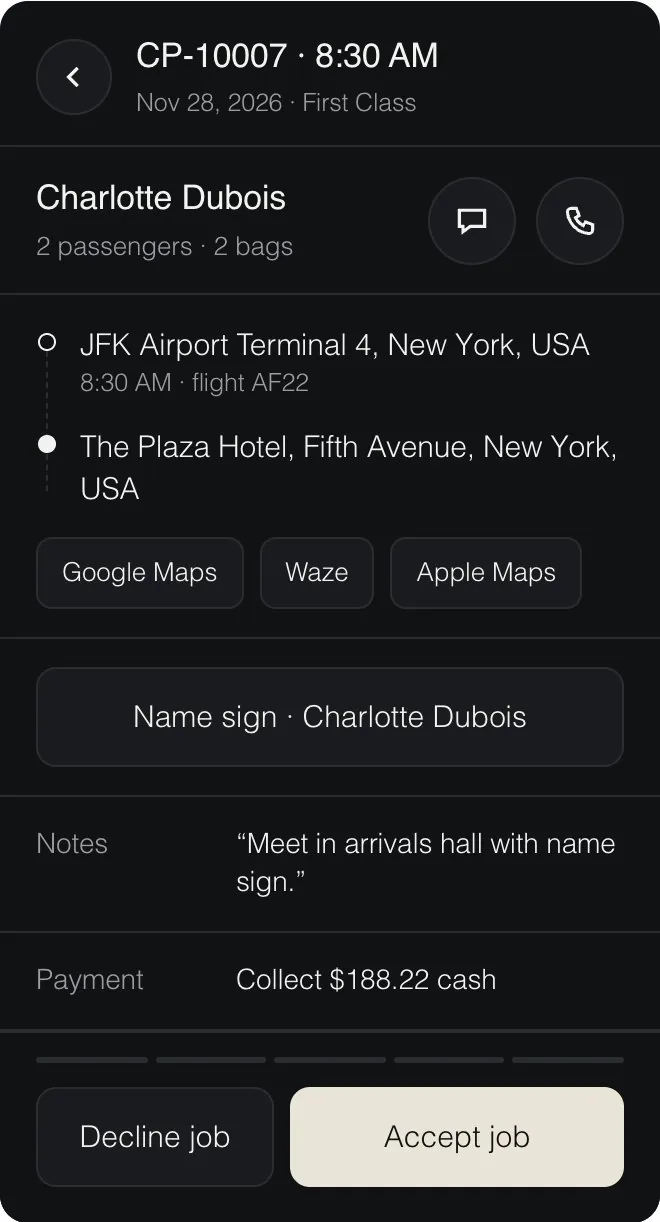
Name sign
Tap Name sign to show the name full-screen with your logo, ideal at airport arrivals. Tap to switch to white on black. The screen stays on.
Live tracking
When the chauffeur taps On my way, the client receives a link showing the chauffeur, the car, an estimated arrival, a Call button and the car on a map (with a browser Maps key). Location is shared only while on the way or arrived.
Frequently asked questions
Do chauffeurs need to download an app?
No. The driver app is a page on your website. They open the invite link and can add it to the home screen on iPhone or Android.
Is the chauffeur's location shared all the time?
No. Only while the trip is On my way or Arrived. Once the client is on board, the tracking link stops showing the location and phone number.